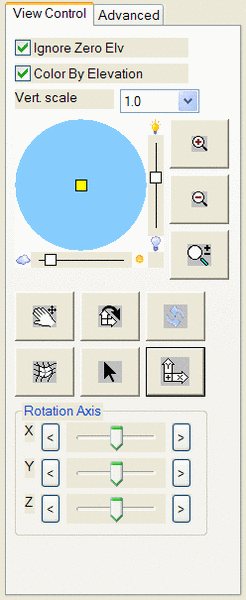
This command reads directly from any surface model file (.TIN, .FLT
or .GRD) allowing dynamic 3d viewing without needing any entities in
the drawing representing the surface.
Once a file is selected and the Surface 3D Viewer starts, the
easiest way to manipulate the viewing angle is with the
mouse. Placing the cursor within the surface area and dragging in
any direction adjusts the angle of the surface, pivoting about the X
and Y axes. Placing the cursor outside the surface and dragging
adjust the location of the camera relative to the surface, pivoting
about the Z axis. These parameters can also be controlled through
various controls on the View Control tab.
 Control
for position of the light source, viewed from above.
Control
for position of the light source, viewed from above. Zooms in.
 Zooms
out.
Zooms
out. Zoom in/out by dragging left mouse button.
 Rotates the main animation
window in any X, Y
or Z direction by holding down the left mouse button.
Rotates the main animation
window in any X, Y
or Z direction by holding down the left mouse button. Converts the left mouse
button to a pan funtion. Holding
down the mouse scroll wheel will also pan.
Converts the left mouse
button to a pan funtion. Holding
down the mouse scroll wheel will also pan.
 Toggles shading on and
off. This is only active when the surface
has been defined with screen entities.
Toggles shading on and
off. This is only active when the surface
has been defined with screen entities. Pick
mode. Pick on model to list elevation.
Pick
mode. Pick on model to list elevation. Restores
plan view.
Restores
plan view.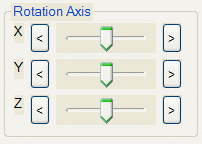 Rotation axes sliders.
 Exits the Surface 3D Viewer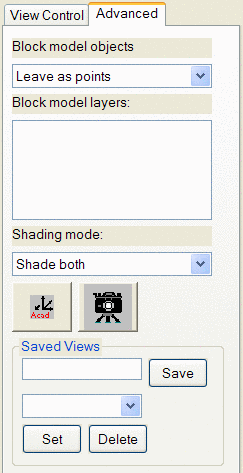
 Sets the AutoCAD drawing editor to the same viewpoint as currently
displayed in the Surface 3D Viewer.
Sets the AutoCAD drawing editor to the same viewpoint as currently
displayed in the Surface 3D Viewer. Saves the current view as an image file.
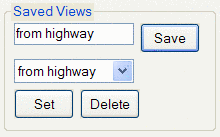 Saves named views. Type a
view name and pick Save. Pick saved views from list and pick Set
to restore to viewer.
Saves named views. Type a
view name and pick Save. Pick saved views from list and pick Set
to restore to viewer.