|
Auto By Interval
 |
|
Auto By Interval
|
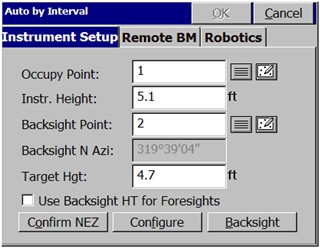
Auto by Interval allows you to acquire and store data at a set interval value of either distance or time. This function is available with GPS or Robotic Total Stations only. When the routine is selected using a robotic total station, you are immediately placed in a Confirm Orientation dialog, where you are asked if this is correct. The opening or main dialog appears as shown here.
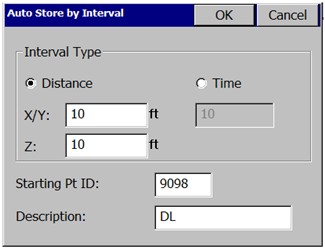
After the backsight is confirmed or measured, you are taken to the Auto Store by Interval dialog. See the figure below. In GPS mode, you are taken to the Auto Store by Interval dialog immediately. In the Auto Store by Interval dialog box, you set the type of interval (distance or time) and the value of the interval. You also set the starting point number for the data set. You can assign a point description for all points acquired with this command. While data is collected, you can change the description.
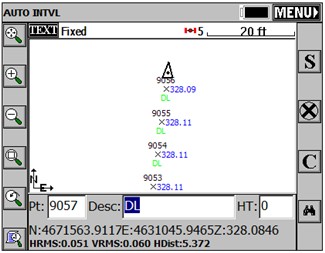
Data is acquired in the standard collection MAP view screen. The point ID, description, and rod height field can all be changed while the command is active. For example, to change your point description from td (top of ditch) to gr (ground shot), simply type gr over the td in the Desc field without interrupting your collection.
Note: In GPS mode, if you run Auto Points at Interval and points do not store, check that your RMS tolerances for storing are not set too low. Points will be stored only when your RMS values are less than those specified in Equip Menu, Tolerances. Also note that if your interval is set to 10, 20 or whatever, you may find that the points store at a distance apart exceeding that specified (eg. 12, 23), due to latency and your speed of movement.