|
Store Points (Offsets)
 |
|
Store Points (Offsets)
|
The GPS Offset command allows you to calculate and store points by specifying an offset from a GPS position. Offsets can either be entered manually or read automatically from a laser. There are three GPS offset methods: Distance/Angle, Intersection, and Two Point. The current method can be set from the Method tab.
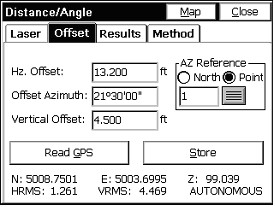
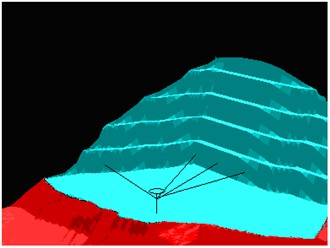
The laser devices are often mounted right on the pole beneath the GPS antenna. Special poles are made that offset around the lasers, allowing them to mount vertically “in-line” with the center of the pole. If the antenna height is 2.5 meters, and the laser is mounted 0.7 meters below the antenna and 1.8 meters above the ground, you would enter 1.8 as the “Laser Height”. Laser types and laser height are set by clicking “Settings” in the Laser tab within Offset, taking you to the same screen accessed in Equip, Peripherals.
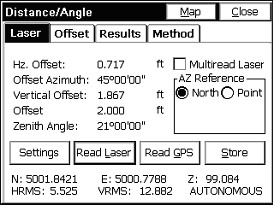
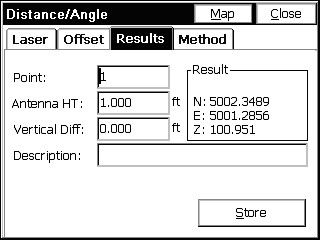
Under the Laser tab, offsets are read automatically from the Laser attached to the serial port. Upon triggering the Laser, you will see the reading displayed in terms of five parameters: Horizontal Offset, Vertical Offset, Slope Offset, Azimuth, and Zenith Angle, as shown below. The azimuth can either be specified with respect to north, or with respect to a specified point. Current GPS coordinates are shown at the bottom, and can be updated with the Read GPS button, or you can choose to have the GPS position read automatically before each point store by choosing Settings and enabling Auto GPS Update. When all necessary data has been entered, you’ll be able to store by clicking Store, or to preview the point you’re storing by clicking Map or Results.
Before you can begin using the Laser offset feature, you must configure the laser, either by clicking Settings, or by selecting Peripherals from SurvCE’s main menu. Under the peripherals menu, you will have to activate your laser, select your laser type, and choose a COM port. It is also recommended that you deactivate all other peripherals except GPS while using the laser. For more details on laser setup, see the Peripherals section of this manual.
Once you have activated a laser, you may click Read Laser to begin collecting data from the laser. In order to expedite the data collection process, the methodology for reading an offset from the laser has been optimized so that you do not need to touch your data collector between shots. This option can be enabled by selecting Multiread Laser. If you are a first-time user, it is recommended that you disable this option.
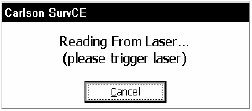
If Multiread Laser is disabled, pressing Read Laser will pop up a dialog asking you to trigger the laser, as shown below. From here, you can either cancel, or fire the laser to record the shot.
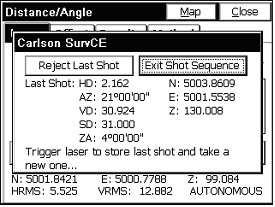
If Multiread Laser is enabled, when you press Read Laser, a dialog will appear asking you to trigger the laser, as shown below. Each time you trigger the laser, a new shot will be collected, and if there was a previous shot, it will be automatically stored. Between shots, the laser reading and the offset-adjusted position to be stored are displayed. If Auto GPS Update is enabled during peripheral setup, a new GPS position will be read for each shot. If a bad reading is taken, you can prevent it from being stored by pressing Reject Last Shot. When finished, click Exit Shot Sequence.
Offset by Intersection
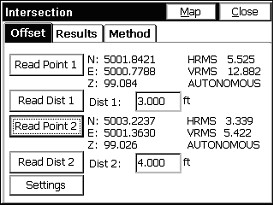
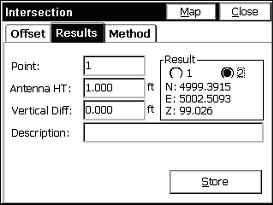
Use Offset by Intersection to calculate a point based on two GPS positions and two distance offsets. The distance values can either be manually entered or input with a laser. To use a laser, you must first activate it by selecting Settings. For more information on laser setup, see the Peripherals section of this manual.
Offset by Two Point
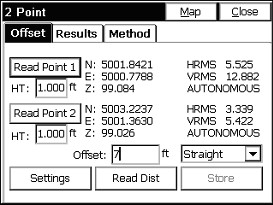
Use Offset by Two Point to calculate a point based on two GPS positions and a distance from the second point. If Straight is selected, the distance offset from the second point is along the 3-D vector created by the two GPS points. If Left or Right is selected, the offset is perpendicular to the 2-D vector created by the two GPS points, and, the second point’s elevation is used as the elevation of the resulting point. The distance offset can either be manually entered or input with a laser. To use a laser, you must first activate it by selecting Settings. For more information on laser setup, see the Peripherals section of this manual.